

Local-first, AI-powered Photo manager

By SHUTTERWORK in File Management
· 63 views
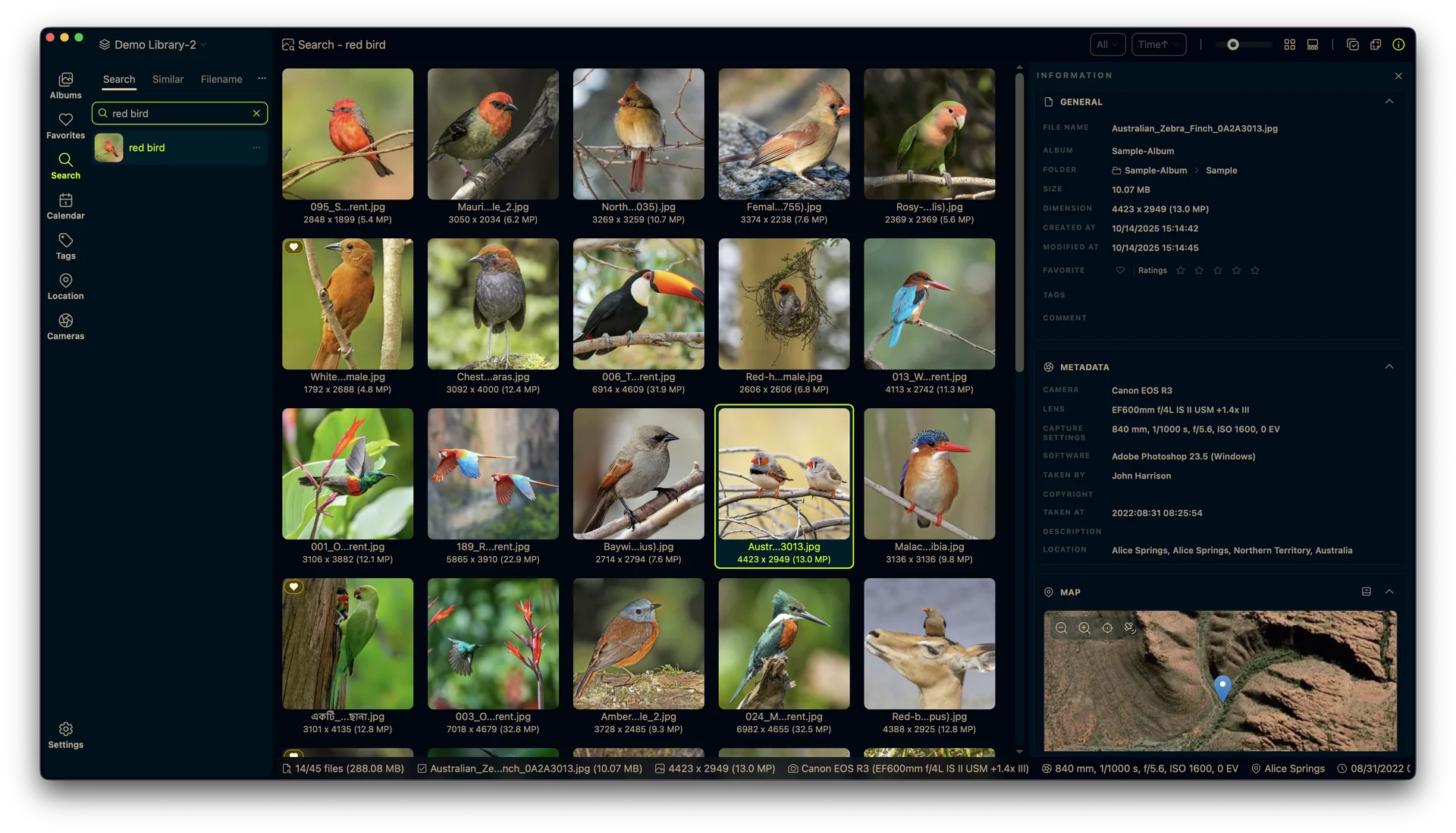
Habe ich gerade neulich noch mit Eagle ein sehr gutes Tool zur Bildverwaltung vorgestellt, bekommt dieses auch schon Konkurrenz: LAP.
Es läuft ebenfalls auf eurem Rechner ohne integrierte Cloud-Funktion und wurde mit Rust, SQLite, Tauri und Vue erstellt, was es leichtgewichtig macht und gleichzeitig sehr große Sammlungen bewältigt. Der Unterschied zu Eagle ist allerdings, dass LAP auf eurer bestehenden Ordnerstruktur aufsetzt. Ausserdem ist es nicht nur gratis (wobei ich fairerweise anmerken muss, dass es sich bei Eagle um kein Abomodel handelt, sondern als Einmalkauf zu einem sehr fairen Preis daherkommt) sondern Open Source. Ein weiterer Pluspunkt ist die Verfügbarkeit für Linux, nicht nur Windows und Mac.
Ebenfalls anzumerken ist, dass sich LAP noch in einer frühen Entwicklungsphase befindet, der erste offizielle Release auf GitHub war im Februar. So funktionierte bei kurzen Tests die AI-Suche, also das Main Feature, nur auf Englisch und war nicht so der Hammer. Aber was nicht ist kann ja noch werden. Da ich es nicht produktiv nutze und nur ein paar Samplepics drin habe, hier ein ausführlicheres Demovideo des Entwicklers ...
Alle Docs und den Download findet ihr auf GitHub, viel Spass damit.
Recommended Comments