



While the old Mobile Menu plugin ensured that Invision Community 4 had a good menu on mobile devices in the first place, the new version is an extension of the menu already included in IC5.
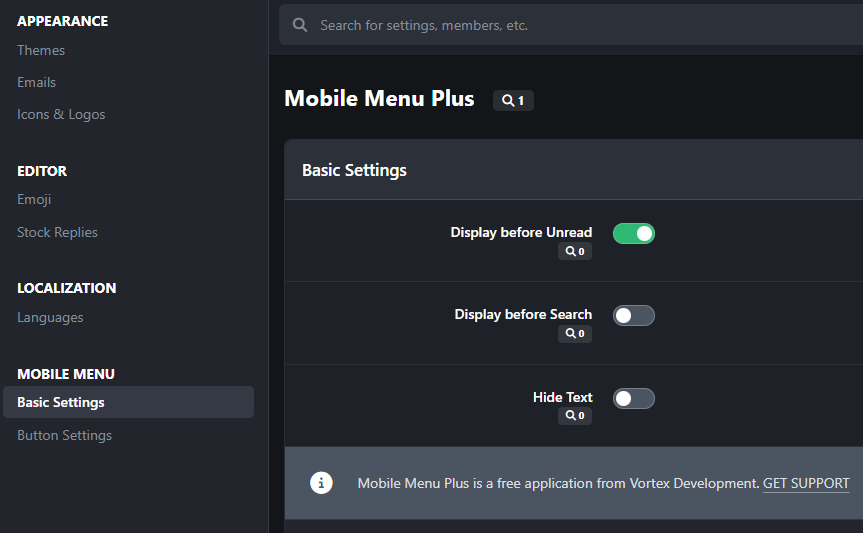
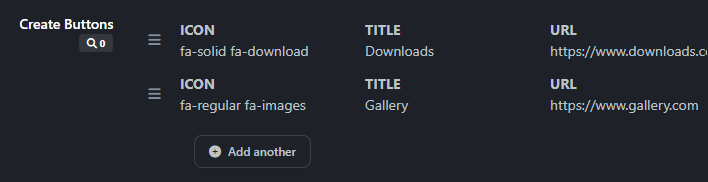
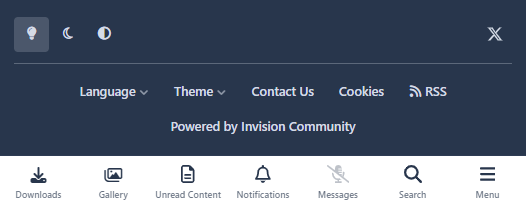
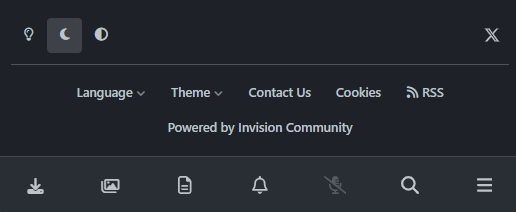
With Mobile Menu Plus, you can add additional buttons to the standard menu and hide the text under the icons.
While the V4 version still worked with fixed slots, you can now add as many links as you want and sort them using drag & drop. There are two entry points available for this (directly at the edge or to the left of the search).
This is the first release, and more features are planned for future versions. If you have any ideas for improvement, feel free to post them in the support thread.
Während das alte Mobile Menu Plugin dafür gesorgt hat, überhaut erst ein gutes Menü für Invision Community 4 auf mobilen Devices bringen ist die neue Version eine Erweiterung für das bereits enthaltene Menü in IC5.
Mit Mobile Menu Plus könnt ihr dem Standardmenü weitere Buttons hinzufügen und die Texte unter den Icons ausblenden.
Hat die V4-Version noch mit festen Slots gearbeitet, so können jetzt beliebig viele Links hinzugefügt und per Drag & Drop sortiert werden. Dafür stehen 2 Einstiegspunkte zur Verfügung (Direkt am Rand oder links neben der Suche).
Hierbei handelt es sich um das erste Release, weitere Funktionen sind für zukünftige Versionen noch geplant. Wenn ihr Ideen zur Verbesserung habt, schreibt sie doch gerne in den Supporthread.
You may only provide a review once you have downloaded the file.
There are no reviews to display.